If & COUNTIF Formula in Excel (Part-2)
Learn how to use IF and COUNTIF formulas in Excel with this beginner-friendly guide. We’ll check Pass/Fail results and count how many marks are above a condition using clear examples and visuals.
🎥 Video Tutorial – IF & COUNTIF Formula in Excel (Part-2)
Watch this complete tutorial from Installer Guru:
📂 Sample Data Used in This Example
We will use the same student marks data as Part-1. This makes it easy to connect and understand the logic.
| Student | Marks |
|---|---|
| Raju | 45 |
| Seema | 78 |
| Amit | 56 |
| Priya | 89 |
| Rohan | 66 |
Assume this data is stored from A2:B6 in Excel.
Step 1 – IF Formula in Excel (Pass / Fail)
What does IF do?
The IF function checks a condition and returns one value if the condition is TRUE and another value if the condition is FALSE.
Goal:
Show whether each student has Pass or Fail based on marks. We will consider 50 as the passing mark.
Formula syntax:
=IF(logical_test, value_if_true, value_if_false)
Example (Pass if marks ≥ 50):
- Click on cell C2 (Result column for Raju).
- Type this formula:
=IF(B2>=50,"Pass","Fail") - Press Enter.
- Drag the fill handle down from C2 to C6 to copy the formula for all students.
Now Excel will show Fail for Raju (45) and Pass for the others because their marks are 50 or more.
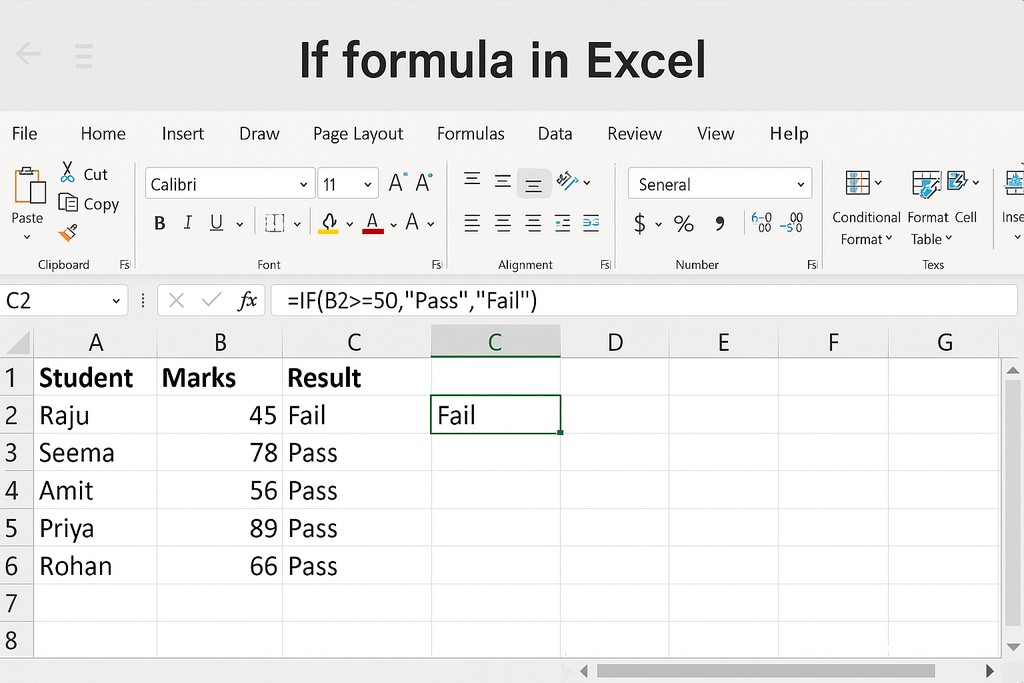
Explanation:
B2>=50 is the condition.
If it is true, Excel returns "Pass", otherwise it returns "Fail".
Step 2 – COUNTIF Formula in Excel
What does COUNTIF do?
The COUNTIF function counts how many cells in a range meet a specific condition. It is very useful for reports and summary dashboards.
Goal:
Count how many students scored more than 60 marks.
Formula syntax:
=COUNTIF(range, criteria)
Example (Marks > 60):
- Click on an empty cell, for example C8.
- Type this formula:
=COUNTIF(B2:B6,">60") - Press Enter.
Excel will count how many cells in the range B2:B6 have marks greater than 60. In our data, the marks above 60 are: 78, 89, 66. So the answer will be 3.
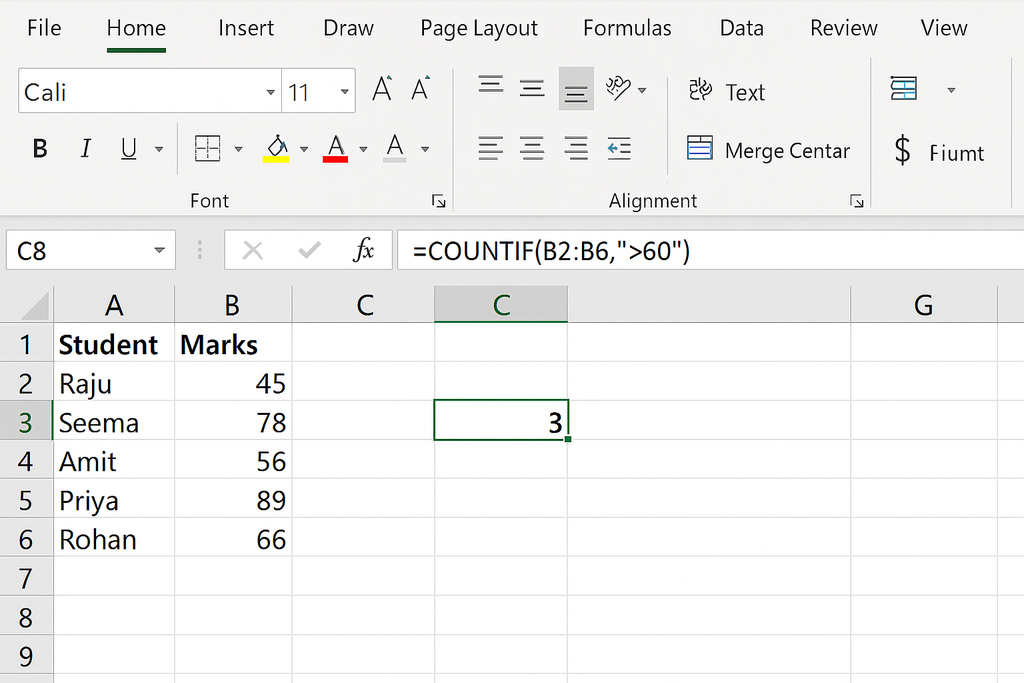
Explanation:
B2:B6 is the range of marks.
">60" is the condition (criteria).
COUNTIF checks each value in B2:B6 and counts only those that are greater than 60.
🧾 Summary of Formulas Used
- IF – Pass/Fail:
=IF(B2>=50,"Pass","Fail") - COUNTIF – Marks > 60:
=COUNTIF(B2:B6,">60")
These two functions together make Excel very powerful for decision-making and analysis. You can easily convert raw marks into Pass/Fail status and quickly count how many students match a particular condition.
📌 Final Note
Practice the formulas on your own data: attendance, sales, expenses, or any list. Then re-watch the video above from Installer Guru to revise the concept.
Congratulations! You can now enjoy hassle-free invoicing with #InstallerGuru – Installation made easy.

Installer Guru
🚀 Installer Guru: Where Installation is Made Easy! 🌐💡 Join our community for simplified tech solutions, seamless installations, and a journey toward digital empowerment. Subscribe now and let's make technology easy, together! 🔧💻 #InstallationMadeEasy #installerguru
No comments yet. Login to start a new discussion Start a new discussion