installer guru - How to do SUM, AVERAGE, COUNT in Excel
Learn the basics of Excel with this easy, step-by-step guide on SUM, AVERAGE, and COUNT functions. Perfect for beginners to quickly calculate totals, averages, and data counts with confidence.
How to do SUM, AVERAGE, COUNT in Excel (Part-1)
Learn the basics of Excel with this easy, step-by-step guide on SUM, AVERAGE, and COUNT functions. Perfect for beginners to quickly calculate totals, averages, and data counts with confidence.
🎥 Video Tutorial – How to do SUM, AVERAGE, COUNT in Excel (Part-1)
Watch this video from Installer Guru for a live, step-by-step demo:
📂 Sample Data Used in This Example
For this example, we’ll assume you have marks of some students in Excel like this:
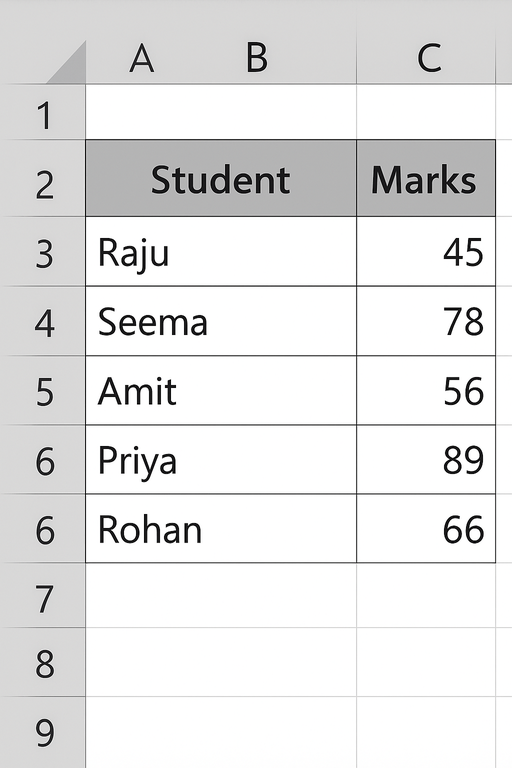
Step 1 – How to Use the SUM Function in Excel
What does SUM do?
The SUM function adds numbers together. We will use it to find the total marks of all students.
Formula syntax:
=SUM(range)
Example:
- Click on cell B8 (or any empty cell where you want the total).
- Type this formula:
=SUM(B2:B6) - Press Enter.
Excel will add all the marks from B2 to B6 and show the total in cell B8.
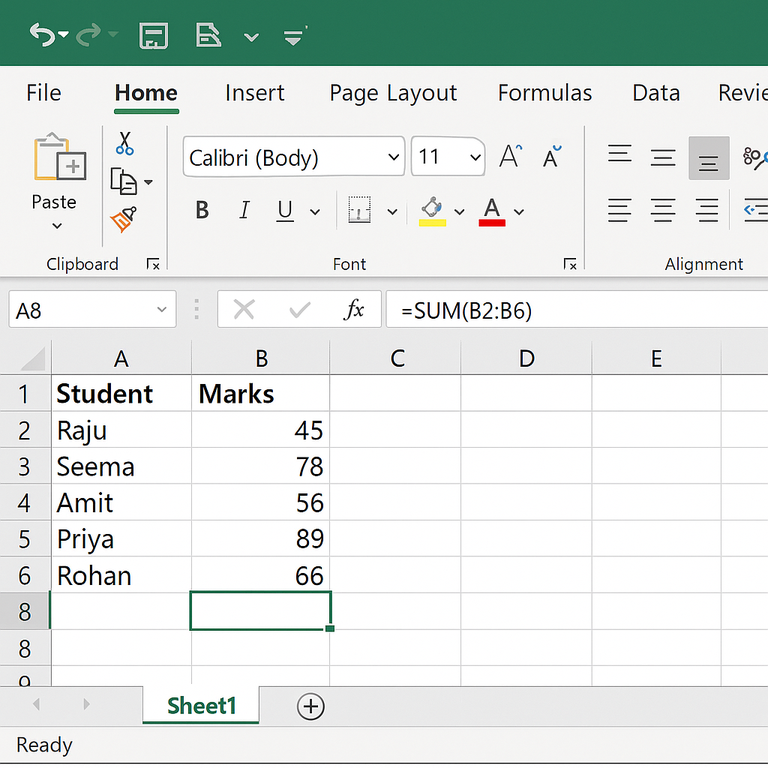
Explanation: B2:B6 is the range of cells containing marks. SUM simply adds them all.
Step 2 – How to Use the AVERAGE Function in Excel
What does AVERAGE do?
The AVERAGE function calculates the mean value of numbers. We’ll use it to find the average marks of all students.
Formula syntax:
=AVERAGE(range)
Example:
- Click on cell B9 (or any empty cell for average).
- Type this formula:
=AVERAGE(B2:B6) - Press Enter.
Excel will calculate the average of the marks from B2 to B6.
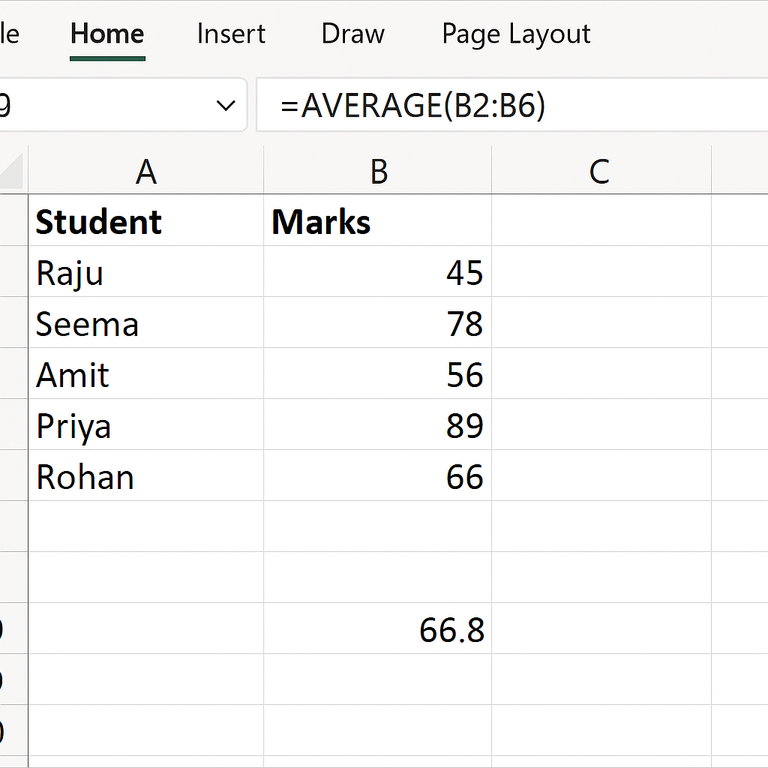
Explanation: AVERAGE adds all the numbers in B2:B6 and divides by how many numbers are there.
Step 3 – How to Use the COUNT Function in Excel
What does COUNT do?
The COUNT function counts how many cells in a range contain numbers. It ignores blank cells and text.
Formula syntax:
=COUNT(range)
Example:
- Click on cell B10 (or any empty cell where you want the count).
- Type this formula:
=COUNT(B2:B6) - Press Enter.
Excel will show how many marks entries are in the range B2 to B6. In our example, it should show 5.
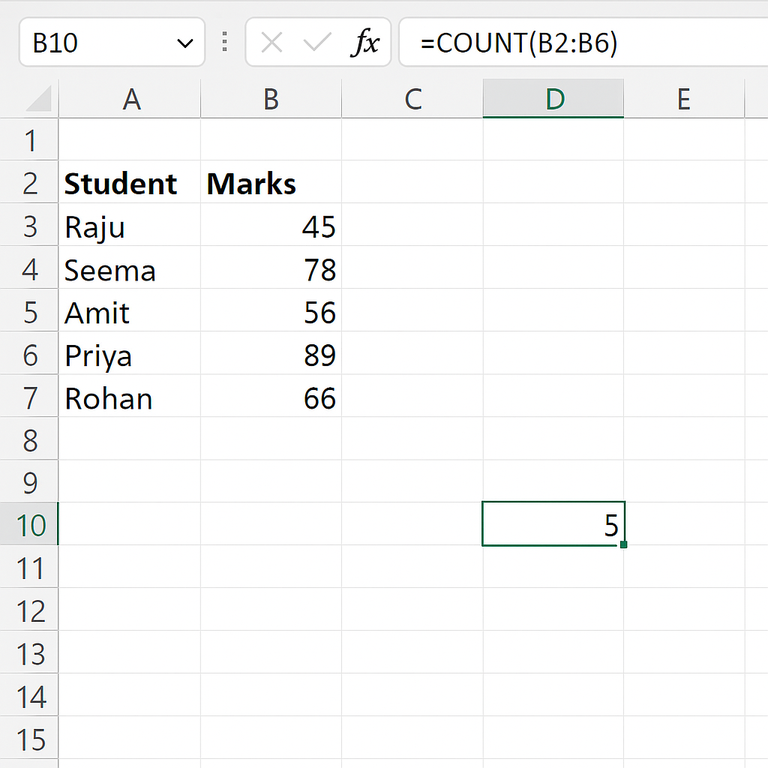
Explanation: COUNT is useful when you want to know how many numeric entries are present in a list.
🧾 Summary of Formulas Used
- Total Marks (SUM):
=SUM(B2:B6) - Average Marks (AVERAGE):
=AVERAGE(B2:B6) - Number of Students (COUNT):
=COUNT(B2:B6)
Practice these three functions on your own data (salary, expenses, marks, sales, etc.). Once you are comfortable with SUM, AVERAGE, and COUNT, you will find Excel much easier and more powerful to use.
📌 Final Note
If you prefer learning visually, don’t forget to watch the full video tutorial above from Installer Guru. You can pause, rewind, and practice along with the video.
Congratulations! You can now enjoy hassle-free invoicing with #InstallerGuru – Installation made easy.

Installer Guru
🚀 Installer Guru: Where Installation is Made Easy! 🌐💡 Join our community for simplified tech solutions, seamless installations, and a journey toward digital empowerment. Subscribe now and let's make technology easy, together! 🔧💻 #InstallationMadeEasy #installerguru
No comments yet. Login to start a new discussion Start a new discussion